Creating Poses
Operating Body Parts
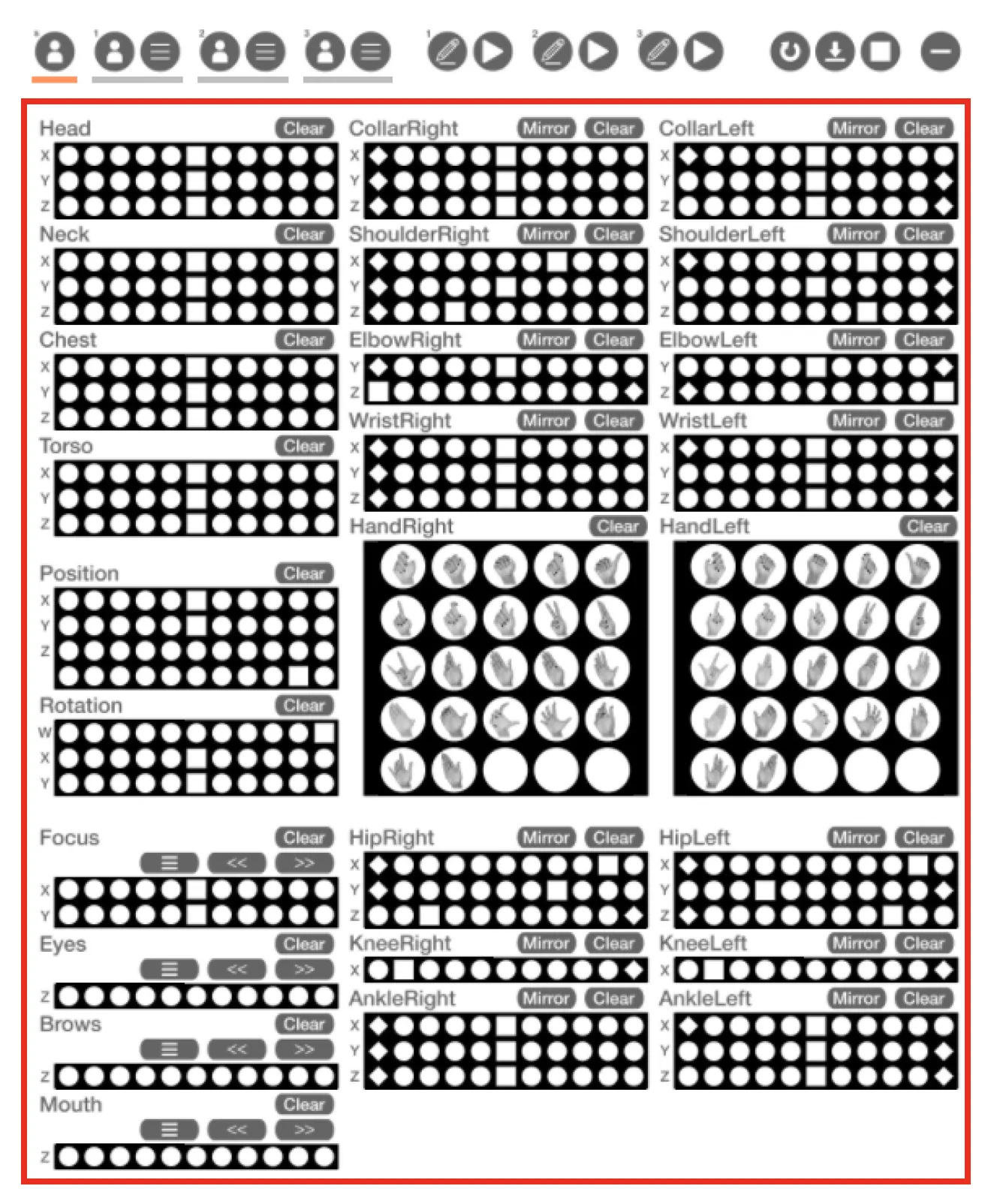
Click the buttons (○□◇) highlighted in the red box in Figure 1 to adjust the rotation of each body part. The W / X / Y / Z labels on the left side of each button indicate the rotation axis. Click the Clear button to reset a body part’s operation. Click the Mirror button to apply the same operation to the opposite side.
Changing Body Part Types
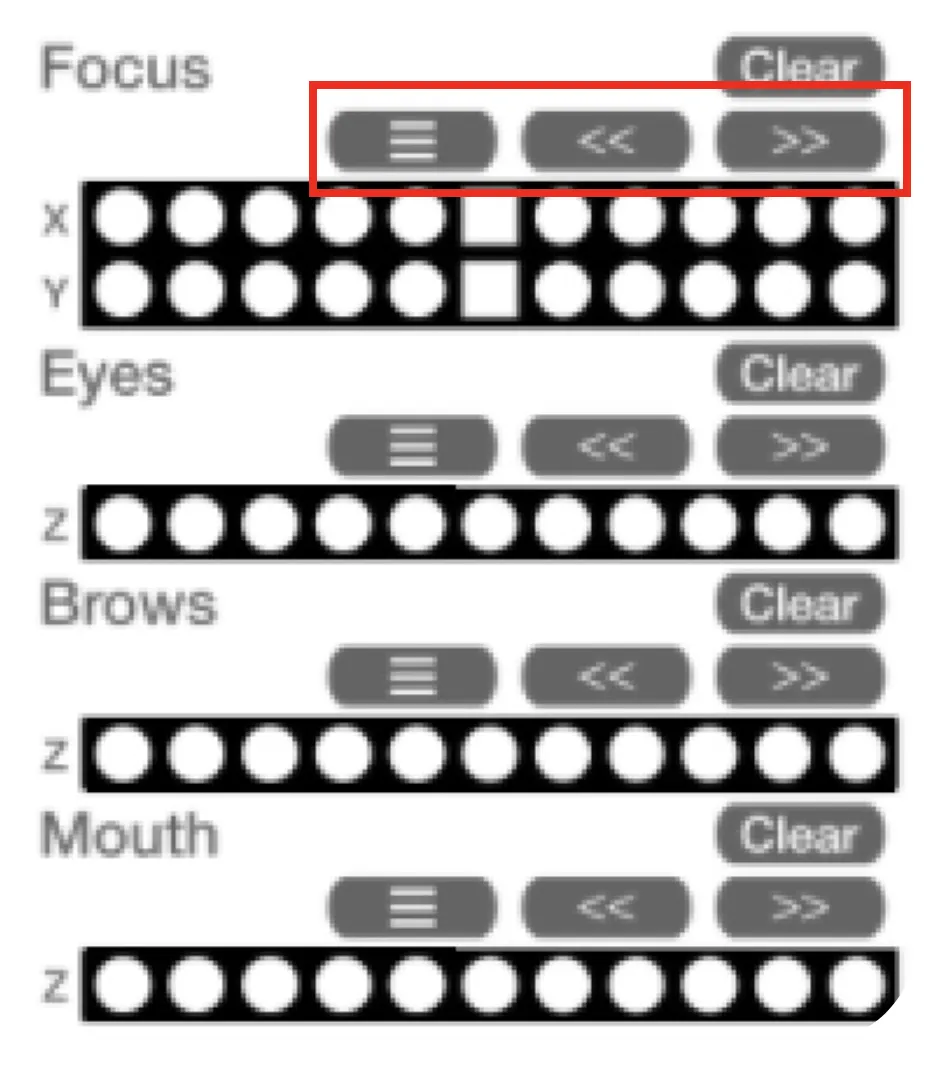
You can change the type of facial parts using the buttons in the red box in Figure 2.
| Button | Function |
|---|---|
| Left button | Opens a menu dialog to select a type |
| << button | Switch to the previous type |
| >> button | Switch to the next type |
For example, Focus lets you switch between options like “looking at something nearby” or “looking into the distance.”
Saving Poses
Saving and Playing Back Poses
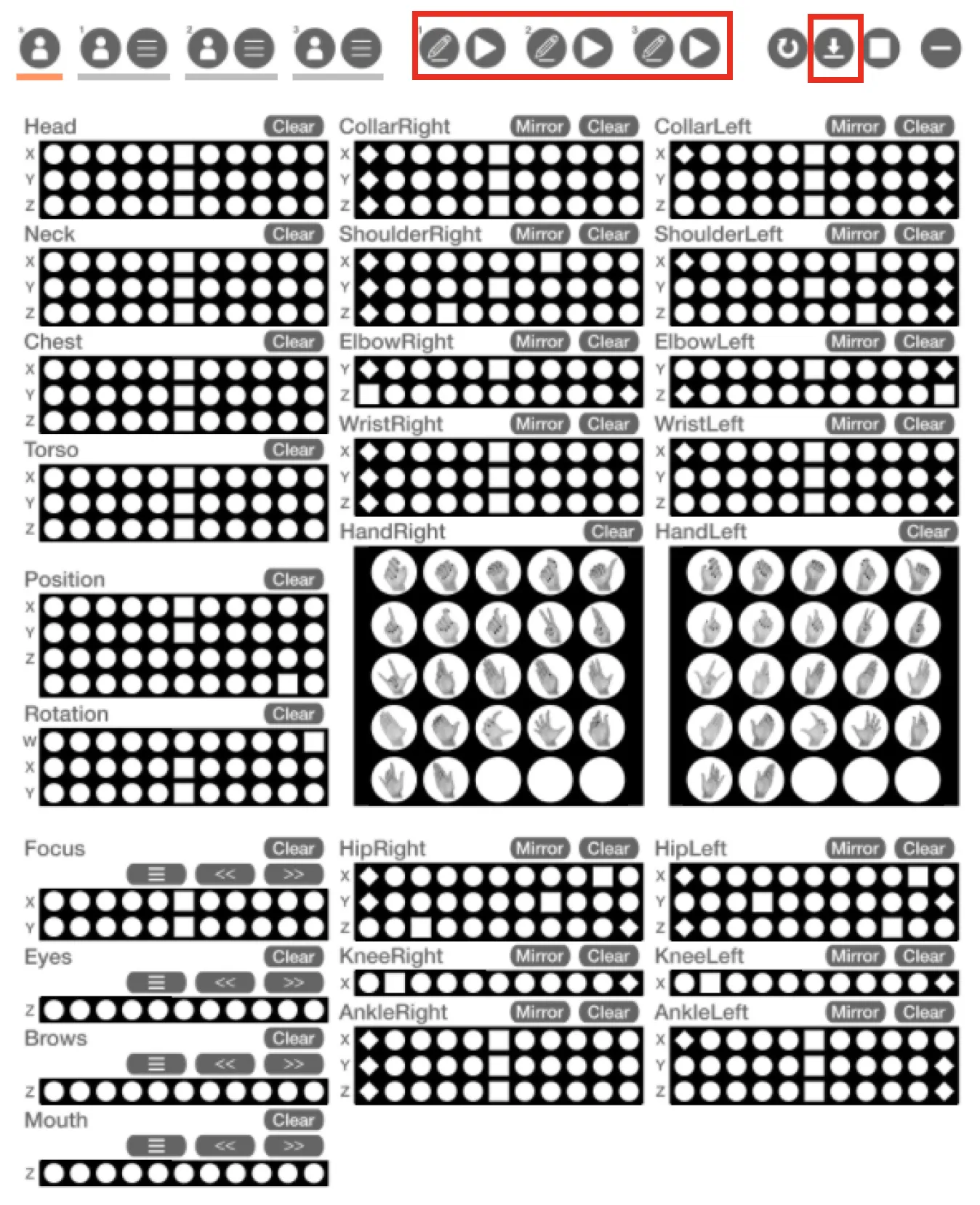
Use the buttons in the red box in Figure 3 to save and play back poses, and to output pose codes.
| Button | Function |
|---|---|
| Save button | Save the current pose to a HUD slot |
| Play button | Play back a pose saved to the HUD |
| Output button | Display a pose code starting with /1470 in the chat |
The output code can be saved in the poses notecard inside the bundled hitoshina_pose_selector in the format title|#2~, allowing you to play poses from hitoshina_pose_selector.
You can also share poses with others by posting screenshots along with the code on social media.
Applying Poses Partially
Adding + before the #2 in the output code applies only that pose partially.
/1470 +#2:Y9646313054846Y5K00Y4For example, you can pre-create poses for just the arms or legs, save them in hitoshina_pose_selector, and combine them to quickly build poses.
Posing Someone Nearby
Requesting Animation Permissions
You can select a user within 25m and control their pose from your HUD.
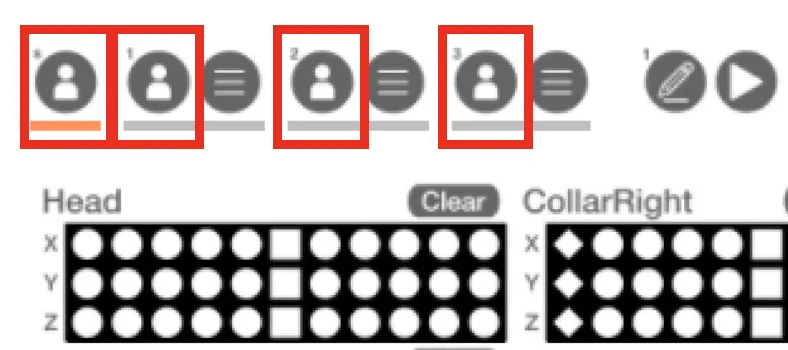
- Click the user selection button in the red box in Fig. 4 to open a dialog for selecting a user within 25m.
- Selecting a user will send three animation permission requests to the target.
- Once the target grants all three permission requests, you can control their pose from your HUD.
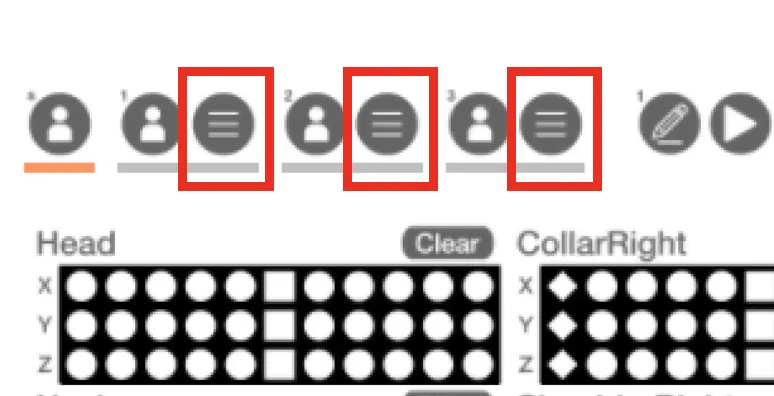
- Use the button in the red box in Fig. 5 to switch between targets.
Ending Remote Control
There are two ways to end remote control.
From your side : Click the user selection button and then click [Release] in the dialog that appears.
From the target’s side : The target can end remote control by entering the /1470 release command.
Using Gesture Commands
By registering chat commands as gestures, you can operate the HUD from your keyboard.
Basic Commands
| Command | Function |
|---|---|
/1470 edit | Open/close the HUD |
/1470 clear | Release all active poses |
/1470 version | Display version information |
/1470 reload | Re-apply all active poses |
Use
/1470 reloadwhen a pose is overwritten by an item that runs animations at regular intervals.
Slot Commands
| Command | Function |
|---|---|
/1470 saveslot1 | Save the active pose to Slot 1 |
/1470 saveslot2 | Save the active pose to Slot 2 |
/1470 saveslot3 | Save the active pose to Slot 3 |
/1470 loadslot1 | Load pose from Slot 1 |
/1470 loadslot2 | Load pose from Slot 2 |
/1470 loadslot3 | Load pose from Slot 3 |
Mirror Commands
| Command | Function |
|---|---|
/1470 swap | Mirror all active poses left/right |
/1470 swaparms | Mirror active arm poses left/right |
/1470 swaplegs | Mirror active leg poses left/right |